SCP Telemetry Help
SCP Telemetry Android App Instructions
Install the Android app, record GPS telemetry at the track, export your session data, and review it in the SprintCar Pro Telemetry Viewer.
Install And Permissions
1. Install the app
- Download the SCP Telemetry package after purchase.
- Copy or open the APK on the Android phone.
- Choose Install.
- If Android asks, allow installing from that source.
- Open SCP Telemetry from the app list.
2. Allow permissions
- Allow location permission when prompted.
- For best background recording, open Android app settings for SCP Telemetry.
- Set location access to Allow all the time if the phone offers it.
- Allow notifications so Android can keep the GPS foreground service running.
The app records in the background while the persistent notification is active.
Record A Session
3. Set up a session
- Open the Setup tab.
- Enter at least Driver Name and Track Name.
- Add car, setup, engine, weather, track condition, or notes if wanted.
- Check Quick Settings.
- Keep Max GPS Accuracy around 25 to 30 meters. Do not use 1.
- Keep Enable auto lap checked.
- Set Auto Lap Radius around 18 meters to start.
- Set Minimum Lap Time to a safe value for the track.
4. Start recording
Manual start:
- Tap Start Session Now.
- Go to the Live tab.
- Wait until GPS shows live movement.
- At the start/finish line, tap Set Start/Finish Here.
- Drive laps.
Auto start: tap Arm Auto Start. The app waits until the car reaches the auto-start speed, then starts the session and can set the start/finish line automatically.
Auto Laps And Saving
5. Auto lap recording
Auto laps count when auto lap is enabled, a start/finish point has been set, the car leaves the start/finish zone, crosses back through it, and the minimum lap time and minimum speed rules are met.
The Live tab may show messages such as armed, lap recorded, waiting for GPS accuracy, or crossed before minimum lap time.
6. Save the session
- Tap End & Save Session.
- Wait for the app to move to Saved.
- Confirm the saved session shows laps and sample count.
If you use Stop GPS Service, the app saves the active run as a completed session so lap data is not lost.
View, Export, And Import
7. View saved data
Open the Saved tab. Each saved session can show lap count, best lap, max speed, lap list, GPS sample count, and telemetry details. Tap Details to view more data for that run.
8. Export data
- Export All JSON: full SCP backup/import file.
- Export Summary CSV: session summaries.
- CSV: one session’s sample data.
- JSON: one session only.
Exports are written to the phone Downloads folder.
9. Import into SCP
- Open SprintCar Pro on the computer.
- Go to the Android telemetry import/viewer area.
- Choose the exported scp-android-telemetry-backup.json file from Downloads.
- Import it.
- Choose the run and lap from the telemetry viewer.
Telemetry Viewer Demo
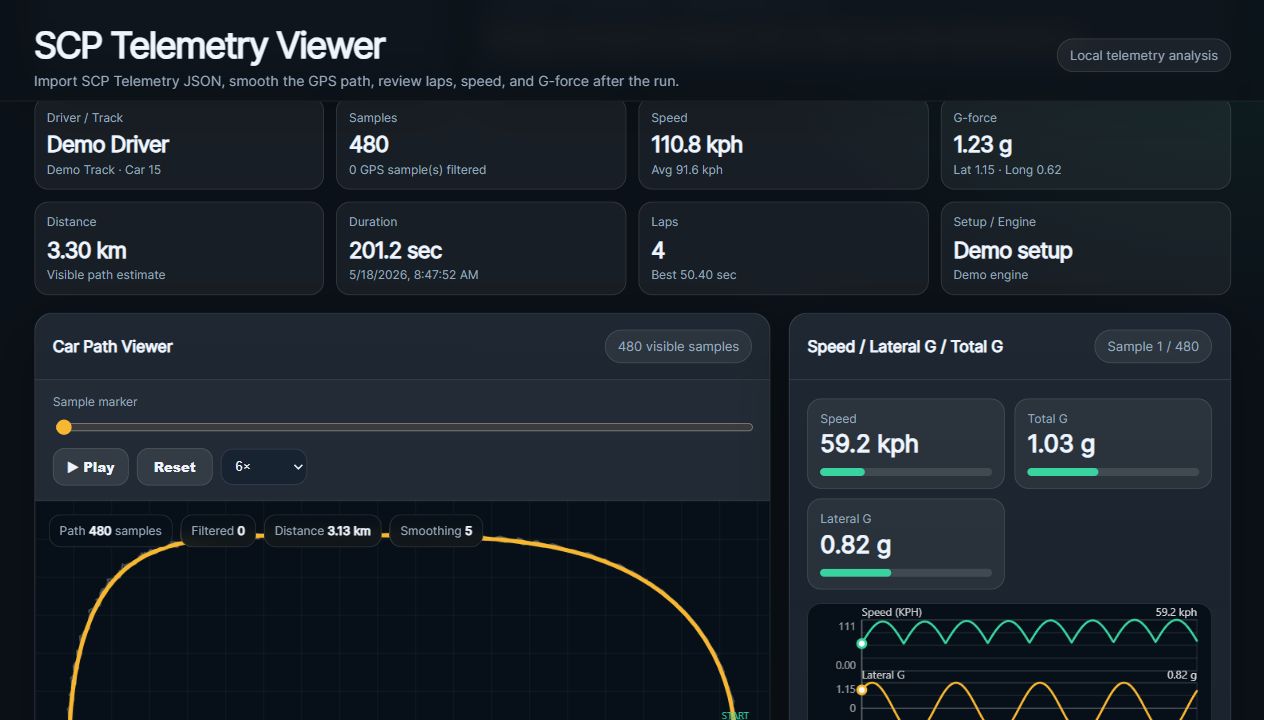
This is the web viewer with the built-in demo session loaded, showing lap count, speed, G-force, sample data, and the car path view.
Viewer links
Use the web viewer to review exported telemetry files.
Recommended Settings
| Setting | Starting Value |
|---|---|
| Max GPS Accuracy | 25 to 30 meters |
| Auto Lap Radius | 18 meters |
| Minimum Lap Time | Slightly below a real lap time, never too low |
| Minimum Lap Speed | 8 kph |
| Max Plausible Speed | 230 to 250 kph |
Troubleshooting
No GPS samples
- Check location permission.
- Make sure GPS/location is enabled.
- Keep the app notification running.
- Start a session and wait for Live GPS movement before driving.
No auto laps
- Confirm Enable auto lap is checked.
- Set the start/finish line during the session.
- Increase Auto Lap Radius to 25 if the crossing is missed.
- Make sure Minimum Lap Time is not longer than the test lap.
Laps count but no path in SCP
- Clear imported Android telemetry in SCP.
- Hard refresh SCP.
- Re-import the JSON.
- Make sure the viewer clamps GPS accuracy to a realistic value.
Recover a run
- If a draft session appears, use Save Draft as Session.
- Use Discard Draft only when you are sure the run is not needed.
Ready To Record A Session?
Download the Android app, record a test run, then open the Telemetry Viewer to review the exported data.